This project show how to make very Simple Push Button Circuit with Arduino.
Push button act like an ON and OFF switch.
When we press button one time then LED changes its state.
First press LED will turn ON.
And second press LED will turn OFF.
It keeps doing the same.
All this happen with small Arduino code.
Arduino Coding for 1 Push Button Switch:
int buttonPin = 2;
int ledPin = 13;
int buttonState;
int lastButtonState = 0;
int ledState = 0;

void setup() {
pinMode(buttonPin, INPUT);
pinMode(ledPin, OUTPUT);
}

void loop() {
buttonState = digitalRead(buttonPin);

if (buttonState == HIGH && lastButtonState == LOW) {
ledState = !ledState;
digitalWrite(ledPin, ledState);
delay(200);
}

lastButtonState = buttonState;
}
Arduino Coding for 2 Push Button Switch:
int button1 = 2;
int button2 = 3;

int led1 = 13;
int led2 = 12;

int last1 = 0;
int last2 = 0;

int state1 = 0;
int state2 = 0;

void setup() {
pinMode(button1, INPUT);
pinMode(button2, INPUT);

pinMode(led1, OUTPUT);
pinMode(led2, OUTPUT);
}

void loop() {

int read1 = digitalRead(button1);
int read2 = digitalRead(button2);

if (read1 == HIGH && last1 == LOW) {
state1 = !state1;
digitalWrite(led1, state1);
delay(200);
}

if (read2 == HIGH && last2 == LOW) {
state2 = !state2;
digitalWrite(led2, state2);
delay(200);
}

last1 = read1;
last2 = read2;
}
Coding Explanation:
- button1 connect to pin 2.
- button2 connect to pin 3.
- led1 on pin 13.
- led2 on pin 12.
- read1 check button1.
- read2 check button2.
- If button1 go LOW to HIGH then Arduino toggle LED1.
- If LED1 is OFF then it turns ON.
- If LED1 is ON then it turns OFF.
- If button2 go LOW to HIGH then Arduino toggle LED2.
- If LED2 is OFF then it turns ON.
- If LED2 is ON then it turns OFF.
- last1 and last2 save old state to detect first press only.
- delay stop with double trigger.
Circuit Working:
Parts List:
| Item | Quantity |
|---|---|
| Resistor 220Ω 1/4 watt | 4 |
| Arduino UNO | 1 |
| Push Buttons tactile switch | 2 |
| LED any 5mm | 2 |
| USB Cable | 1 |
| Breadboard | 1 |
When Arduino power start, LED is OFF.
Button 1 and Button 2 both are in rest and both pins read LOW.
When we press Button 1 then the pin 2 become HIGH.
Arduino see change from LOW to HIGH on pin 2.
Arduino flip LED state.
If LED is OFF then it goes ON.
If LED is ON then it goes OFF.
When we release Button 1 then pin 2 go LOW again.
Arduino wait for next press.
When we press Button 2 then the pin 3 become HIGH.
Arduino see change from LOW to HIGH on pin 3.
Arduino again flip LED state.
If LED is ON then it goes OFF.
If LED is OFF then it goes ON.
Button 1 and Button 2 both do same toggle function.
Any button can change LED state anytime.
Circuit repeat same process every time buttons is pressed.
Formula with Calculation:
LED resistor formula:
R = V / I
Arduino pin give around 5V.
LED drop around 2V.
So resistor voltage = 5 – 2 = 3V.
If LED safe current = 20mA = 0.02A
Then:
R = 3 / 0.02
R = 150 ohm
Nearest safe value used is 220 ohm.
How to Build:
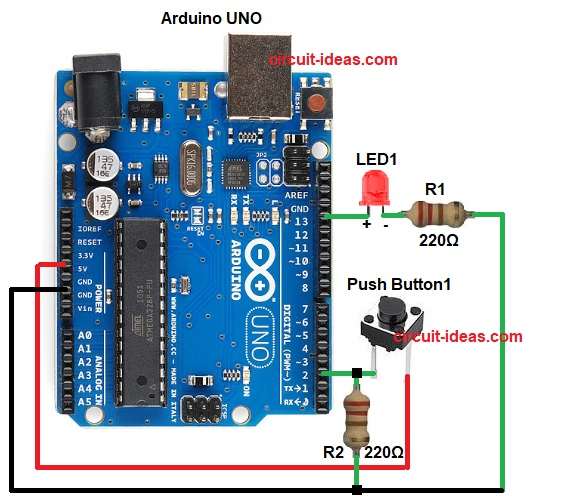
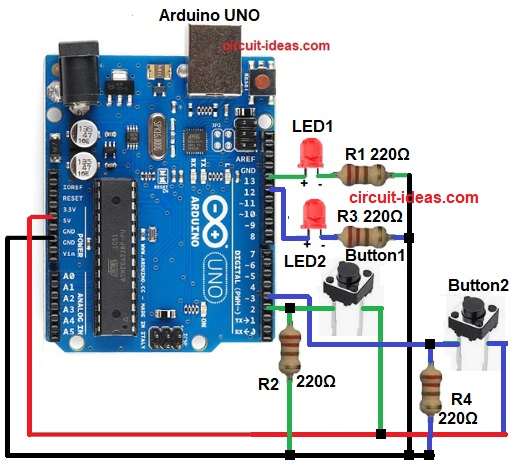
To build a Simple Push Button Circuit with Arduino with Arduino following are the steps for connections:
- Gather all the parts as shown in circuit diagram.
- Push Button1 connect one side to 5V.
- Other side to Arduino pin 2.
- Same side connect R2 resistor to GND (pull-down).
- Push Button2 connect one side to 5V.
- Other side to Arduino pin 3.
- Same side connect R4 10k resistor to GND (pull-down).
- LED1 positive connect pin 13.
- LED1 negative to one end of 220 ohm resistor R1 and other of resistor go to GND.
- LED2 positive leg connect to Arduino pin 12.
- LED2 negative leg connect to 220 ohm resistor R3.
- And resistor other end to GND
- Arduino 5V connect to Breadboard + line.
- Arduino GND connect to Breadboard – line.
Conclusion:
This is an easy project for Simple Push Button Circuit with Arduino.
A each button changes LED state every time we press it.
The code is small and easy.
This circuit helps beginners understand digital input, output and toggle logic.
We can expand it for many automation projects.

Leave a Reply